
 AI Social Media Image & Video
Social posts, image-to-video clips and wider images
Using the OmniGen AI Video Generator App
 AI Video Generator Last updated on November 25, 2026
What is OmniGen AI Video Generator?
OmniGen AI Video Generator is an app designed to help you create customized video presentations for your products. Using AI, it generates both the script and video content.
💡 Important: Usage charges apply for each video generated.
Steps to create a video using OmniGen AI Video Generator
- Choose a Product:
- Select a product from your store to generate a video for.
- Confirm the product details and images to be used.
- Confirm or update the product title, product description and the assets (images and videos) to be used by the generated video.
- Add at least 3 images or videos, and at most 30 (JPG, PNG, GIF or MP4, up to 70MB each).
- Describe Your Ideal Audience and Video Length:
- Specify the target audience for the video
- Select the video length - 15 seconds, 30 seconds, or 45 seconds
- Select the language to be used.
- Choose whether to show captions on the video.
- Select or Edit a Script:
- OmniGen AI Video Generator will generate several scripts tailored to your product.
- Choose one of the scripts or edit it to suit your needs.
- Select an Avatar:
- OmniGen AI Video Generator allows you to select the Avatar or the person who is going to talk in the video.
- Filter the avatars by gender, age, style (selfie or presenter) and location (indoor or outdoor).
- If you do not select an avatar, the tool chooses an avatar and voice for you, based on your ideal customer and language. The final review then shows it as Smart choice.
- Click the Generate Video button to see how the video will initially look like with the entered parameters. This is where the charge is going to be generated.
- The first time, the app asks you to approve usage charges. This will bring you to Shopify's Billing platform.
- You approve a spending limit there once. After that, each video is charged without a new approval, until you reach the limit. Then the app asks you to extend it.
- You need a paid Shopify plan to approve usage charges.
- Depending on the video duration you selected in the previous step, there will be a corresponding charge for the video:
- 15-second video - $4.99 USD
- 30-second video - $6.99 USD
- 45-second video - $9.99 USD
- Once a preview has been generated (and the charge confirmed), you can then select a Video Style.
Select a video style
After you have selected an avatar (and confirmed the charge), you can select a video style from the available options.
You can watch each style and decide which one perfectly fits your vision. Note that in the previews shown in this step, the avatar speaking is not yet fully synced with your selected script, as you can still review and make changes afterward.
Once you have selected your style, click the "Final review" button to proceed to the next step.
Final Review
This step provides a summary of the different options you have selected from the first step. You can go back to a specific step from here anytime, should you like to change it:
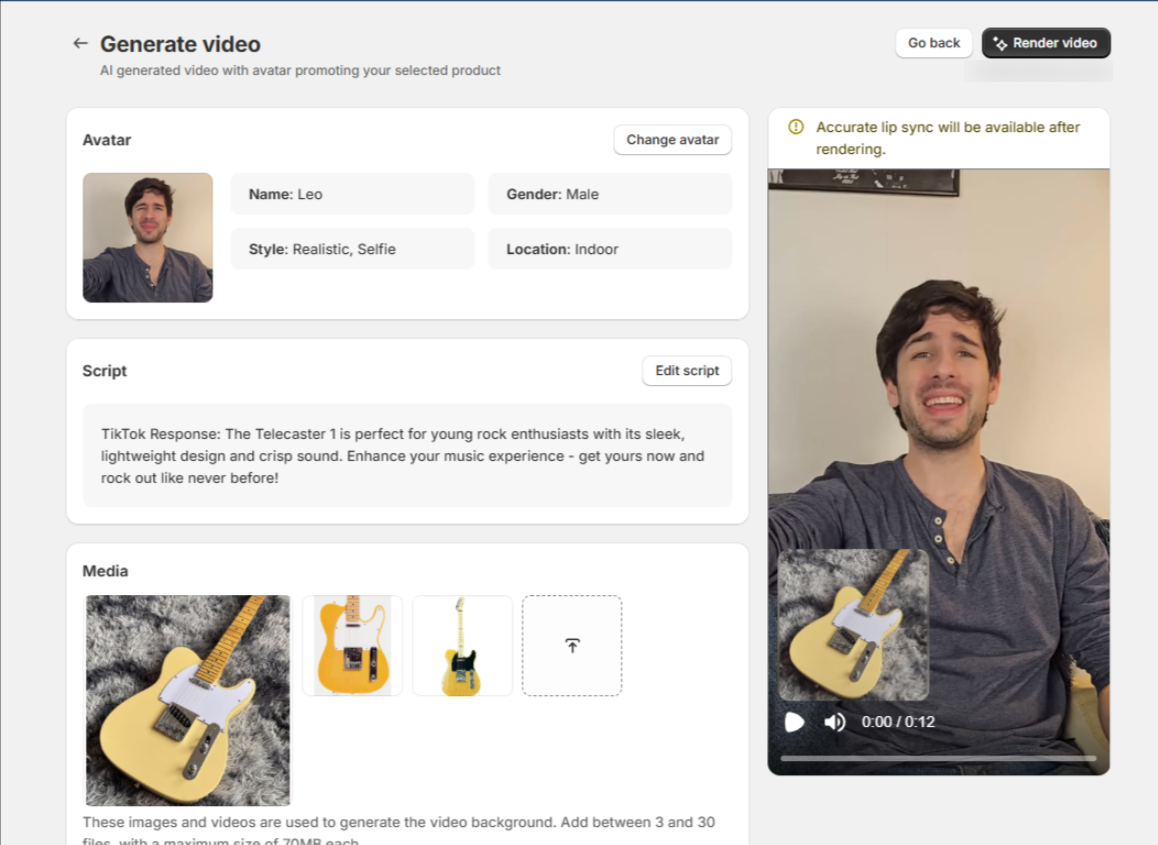
- Note: In the preview video, the lip sync will be inaccurate, but it will become accurate once the final video is rendered.
- Once you are satisfied with the different parameters set and are ready to download the final video, click the Render video button.
- Render the Video:
- The video will be rendered within minutes.
- Click Export to download the video to your computer as an MP4 file.
- The video will also be saved in the dashboard for easy future access.
💡 Pro Tip!
You can exit at any step in the process - your progress will be saved as a draft for 30 days. This allows you to pick up right where you left off later.
Please note that drafts will be automatically deleted after 30 days!
For any issues or suggestions, feel free to reach out to our support team!
Still stuck?
Chat with our support team, we’ll sort it out with you.